
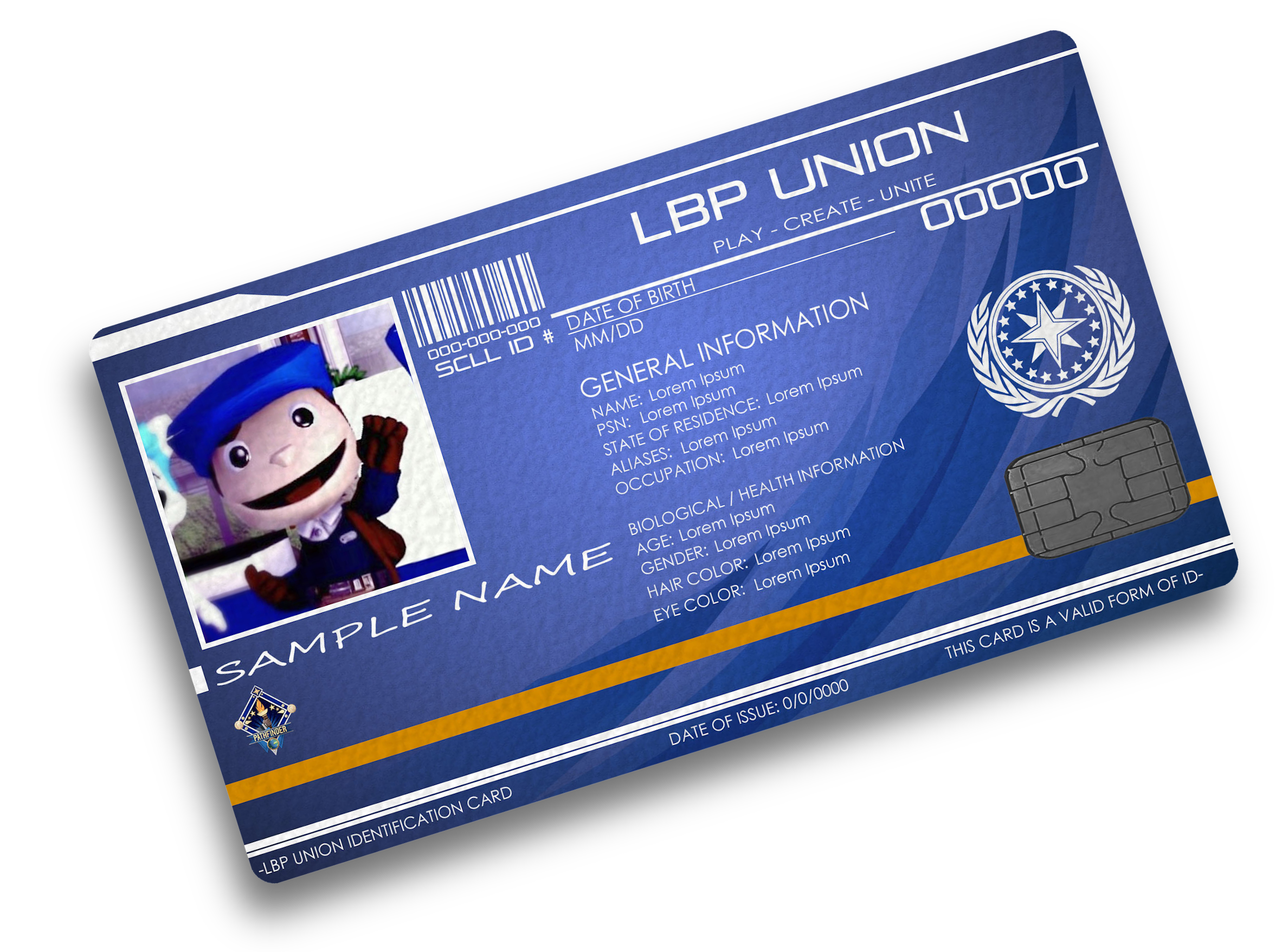
Your LBP Union Passport is your connection to the LittleBigPlanet community. One, universal login for LBP Union’s:
- Forum
- Wiki
- Support portal
and more. Powered by Authentik single sign-on.
Get Started
To use LBP Union Passport, you’ll need to create an account. Note: this is separate from your Beacon account.
- Click the button below
- Select ‘Sign up’ below the login prompt.
- Enter your desired username, email, and password
- Verify your email to finish creating your account.
As with all things Internet, this has privacy implications. Read our human-readable privacy notice for more information.
Login With Passport
Here is a list of applications that you can log into with LBP Union Passport:
Forum
Discuss LittleBigPlanet online!
Wiki
The LBP Union Archives
Support
Beacon account help
Guide to LBP Union Passport
Passport is a single-sign on service hosted by LBP Union. It’s powered by Authentik, a free and open source self-hosted application. Your account is kept on our server, not a third party. Learn how it works and how to manage your account below.
Creating Your Account
Use the link to create your account. Follow these steps:
- Choose a username: do not choose a username which exposes personally identifiable information, like your real name.
- Choose a password: please choose a strong, unique password which you don’t use on other websites.
- Provide your preferred email address: choose your email address carefully. LBP Union staff will be able to see your email address.
- Verify your email: when the verification email has arrived from an LBPUnion.com email address, click the link inside to finish setting up your account.
Once email verification is complete, your account will be created and you will have access to the Passport dashboard. This is where you can access your settings and see all the applications you have access to.
Connect Your Account to Discord
This is optional:
- Click the gear to access your settings.
- Navigate to Connected services.
- Click Connect next to the Discord logo.
Read the permissions request from Discord carefully. For more information about the permissions, see the Discord connection section of our privacy notice.
Configure Multifactor Authentication
Secure your account with multifactor authentication. You have three options:
- Time-based one-time password (TOTP): traditional time based authentication with an app, typically on a smartphone.
- WebAuth: use a hardware security key like a YubiKey or a passkey saved to your device.
- Static tokens: backup codes that can be used to recover your account in case you lose your other MFA device(s).
It’s recommended to set up more than one MFA device. We suggest choosing either TOTP or WebAuth as your main device, and then always set up static tokens as a backup. Write them down on a piece of paper and keep it somewhere safe.
- Click the gear to get to your settings
- Choose MFA Devices
- Select Enroll and select your desired device.
Remove unwanted devices from the list as needed by selecting them and choosing Delete.
Review Sessions
From time to time you may want to review your active sessions to ensure that your account hasn’t been compromised. You can also deactivate unwanted sessions from this screen.
- Click the gear to get to your settings.
- Choose Sessions.
- Review your sessions from the list. Select a session and click Delete to remove it.
Delete Your Account
We’re happy to help you delete your account for any reason. To delete your account, please follow the most recent steps in our privacy notice.