LBP Union and Project Lighthouse are not affiliated with Sony Interactive Entertainment or their subsidiaries. Project Lighthouse is a clean room reverse engineering project of now defunct PlayStation 3 and Vita LittleBigPlanet online features. No proprietary code is distributed. Under no circumstances will we endorse or support piracy. You must have your own copy of the game in order to use the custom features once they become available. When using these features, you release Sony Interactive Entertainment (Sony) as well as any employees or agents of Sony, from any and all liability, corporate, or personal loss caused to you or others by the use of Lighthouse custom servers for LittleBigPlanet.
Written by m88youngling and indo2042
After the 2021 server attacks, the LittleBigPlanet servers on PlayStation 3 were sadly sunset in September that year. After September 13th, LittleBigPlanet’s online features on PS3 and Vita were permanently discontinued. However, there is a way to play community levels with your friends once again! In this guide, we’ll show you how to patch LittleBigPlanet PS3 for Project Lighthouse, a custom LBP server!
Watch the Video Tutorial!
Prefer to watch instead of read? Check out our PS3 patching video tutorial on our YouTube channel!
Getting Started
Patching LittleBigPlanet 1, 2 and 3 on PS3 to connect to a custom server isn’t as hard as you might think! To get started, you’ll need a few things. We’ll show you how to get each of them!
- A CFW or HFW PlayStation 3
- Patched LBP1, 2, or 3 EBOOT file.
- A PC, or Linux computer.
- A flash drive.
Acquire Hardware
If you need a PlayStation 3 or a flash drive, don’t despair. They are easy to get! We suggest grabbing a PS3 earlier than the latest model, such as a fat or a normal slim. The super slim can still play on LittleBigPlanet Project Lighthouse servers, but it can only use hybrid firmware and not custom firmware. More on that later!

You can find a PS3 on Amazon! They are relatively inexpensive. When shopping for a flash drive for your PS3, make sure that your USB stick is FAT32 compatible! If not, you’ll need to format it to FAT32. A few things to remember:
- It’s not that difficult!
- Jailbreaking your PlayStation 3 is reversible if you ever want to go back to normal.
- Running homebrew utilities can actually extend the life of your console. For example, normal PS3s have a fan speed cap somewhere around 30%. Homebrew can make the fan spin faster to keep your PS3 cooler.
- The risk of being banned is low.
1. Get CFW or HFW For Your PlayStation 3
Let’s talk about how to unlock the potential of your PlayStation 3 with CFW or HFW. Don’t worry, it’s not as hard as it sounds, and all changes are completely reversible!
Is it Legal?
Yes, it is legal to jailbreak your PlayStation 3 and modify your copy of the game. However, it may be against PlayStation Network’s Terms of Service. This means that they may be able to terminate your access to the service at any time. However, none of our beta testers from 2021 to the present have been banned by PSN for using LittleBigPlanet custom servers.

Why Do I Need to Jailbreak my PS3 to Play LittleBigPlanet Online?
Many have suggested that a DNS redirect could be used to play LittleBigPlanet online on PS3 without jailbreaking your console. This would be a lot easier and faster but unfortunately, it’s just not possible due to the way the game was created. Without Sony’s SSL certificate, a DNS redirect would never work. Even if we had the official certificate, it would be illegal for us to use.
Should I Use Custom Firmware or Hybrid Firmware to Play LBP Online?

If we can’t use a DNS redirect, our goal then is to change the server address that the game points to. However, this means that we have to modify the game. Sony designed the PlayStation 3 to not run modified games. So, we have to change that! We have two choices:
- Custom Firmware (CFW): full jailbreak. This allows you to have advanced permissions and control over your PlayStation 3. Does not work on Super Slim models.
- Hybrid Firmware (HFW): a step between official firmware (OFW) and CFW. The most popular PS3 HFW is Homebrew Enabler (HEN). This allows us to run modified games but is missing some features and the convenience of CFW.
Realistically, either of these two methods work just fine for playing LBP online. The only thing that matters is your personal preference.
CFW is easier to use but can sometimes be slightly more difficult to set up. HFW is arguably easier to set up and is compatible with more PS3 models. However, it is a little less convenient to use. Here’s some more details on firmware compatibility:
| | FAT | Slim | Super Slim |
| Homebrew Enabler (HEN/HFW) | ✓ | ✓ | ✓ |
| Evilnat (CFW) | ✓ | CECH-20xxA – CECH-25xxB | ✕ |
There are some great tutorials online about getting CFW and HFW! Choose the tutorial that’s right for you. We recommend HEN for beginners, and CFW for those who are more experienced. Remember, you can always upgrade to CFW from HEN at any time! Here’s our favorite tutorial about installing PS3 HEN:
And here’s our favorite tutorial on PS3 CFW (Evilnat):
Enabling HEN
If you choose to use HEN, you will come to a point in the tutorial video where you need to go to an enabler website at ps3xploit.me. If this isn’t working for you or the website isn’t available, you can use our mirror of the enabler. For most cases, choose HEN Enabler → Official Flash.
Patching Console [CFW]
If you choose to use CFW, there will be a point in the tutorial video where you will need to use the PS3 Flash Writer. Here is a link to the PSX-Place forum post where you can set up and self-host the flash writer.
Necessary Homebrew
You’ll need the following homebrew applications installed to your PS3 to continue patching to connect to LittleBigPlanet custom servers:
- Multiman: a file manager for PS3.
- Webman: homebrew tools that allow you to transfer files between your computer and your PS3 easily, as well as many other features.

2. Patching Your LBP EBOOT
Congratulations! You now have a PlayStation 3 that can run unsigned code. This means you can run modified games. Now it’s time to modify your copy of LittleBigPlanet. The file we need to modify is called EBOOT.BIN. This is where much of the game’s binary data is stored.
We need to change, or patch, the server URL in the EBOOT.BIN file to a server of our choice. Let’s choose Beacon, LBP Union’s custom LittleBigPlanet server!
Don’t Share EBOOT Files!
Remember, your game files are copyrighted. Having a friend send you an already patched EBOOT.BIN file is piracy! Be respectful to Sony and their intellectual property.
How to Use Refresher to Patch LittleBigPlanet Games on PS3
We currently recommend using Refresher, a LittleBigPlanet game patching tool, when patching your game for Beacon. This is because Refresher can apply the Patchwork security implementation, a plugin which can mitigate the risk of force-join exploits. The Patchwork plugin is required to play on Beacon. Follow the steps below to use Refresher to patch LittleBigPlanet games for custom servers on PlayStation 3.
- Download the Refresher software from the GitHub repository’s releases page. Select the corresponding version for your operating system.
- Upon first run, Refresher will inform you that you must install a package called .NET to run the software. Go ahead and follow the instructions on screen.
- When .NET has been installed, run Refresher again. You will be presented with a list of options. Select the first option, Patch LBP1/2/3 for PS3.
- Turn on your PS3. Enable HEN if necessary. Hold Start + Select at the same time for a few moments in the XMB (be careful not to do this on an app you might accidentally run, like HEN or a game) to show your PS3’s local IP address. This is a number that will look similar to 192.168.1.123. Type this local IP address into the first box in Refresher which says Console IP.
- Click Connect. Refresher will now detect LittleBigPlanet games on your console.
- Click on the large, wide box next to where it says Game and select the LittleBigPlanet game you want to patch.
- In the server URL box, type https://beacon.lbpunion.com. Then, click AutoDiscover. When it’s done discovering the correct URL, it will show ‘[Connected to Beacon]’.
- For the Lobby Password slot, type a custom lobby password or leave blank if you don’t want anyone to join you in the game at all.
- Click Patch. Your game will be patched and the Patchwork plugin will be installed!
Downloading Refresher
When you download Refresher, make sure you choose the version that corresponds to your operating system. For example, Windows users should select Refresher_for_Windows_x64.exe.
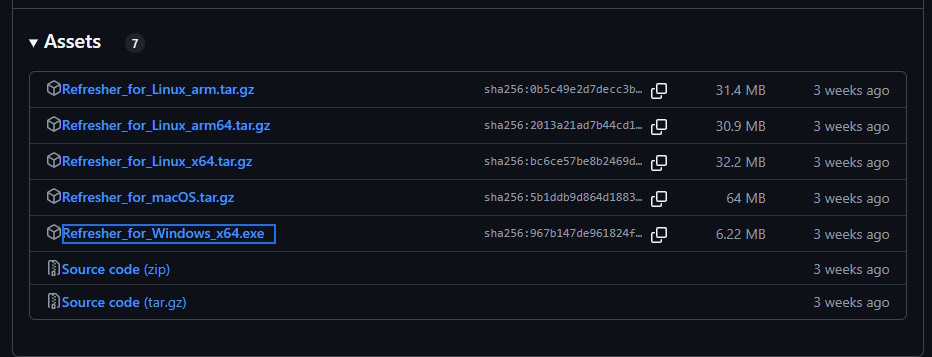
Your browser and operating system might be a bit upset about running Refresher. You can bypass any security warnings.
Installing .NET
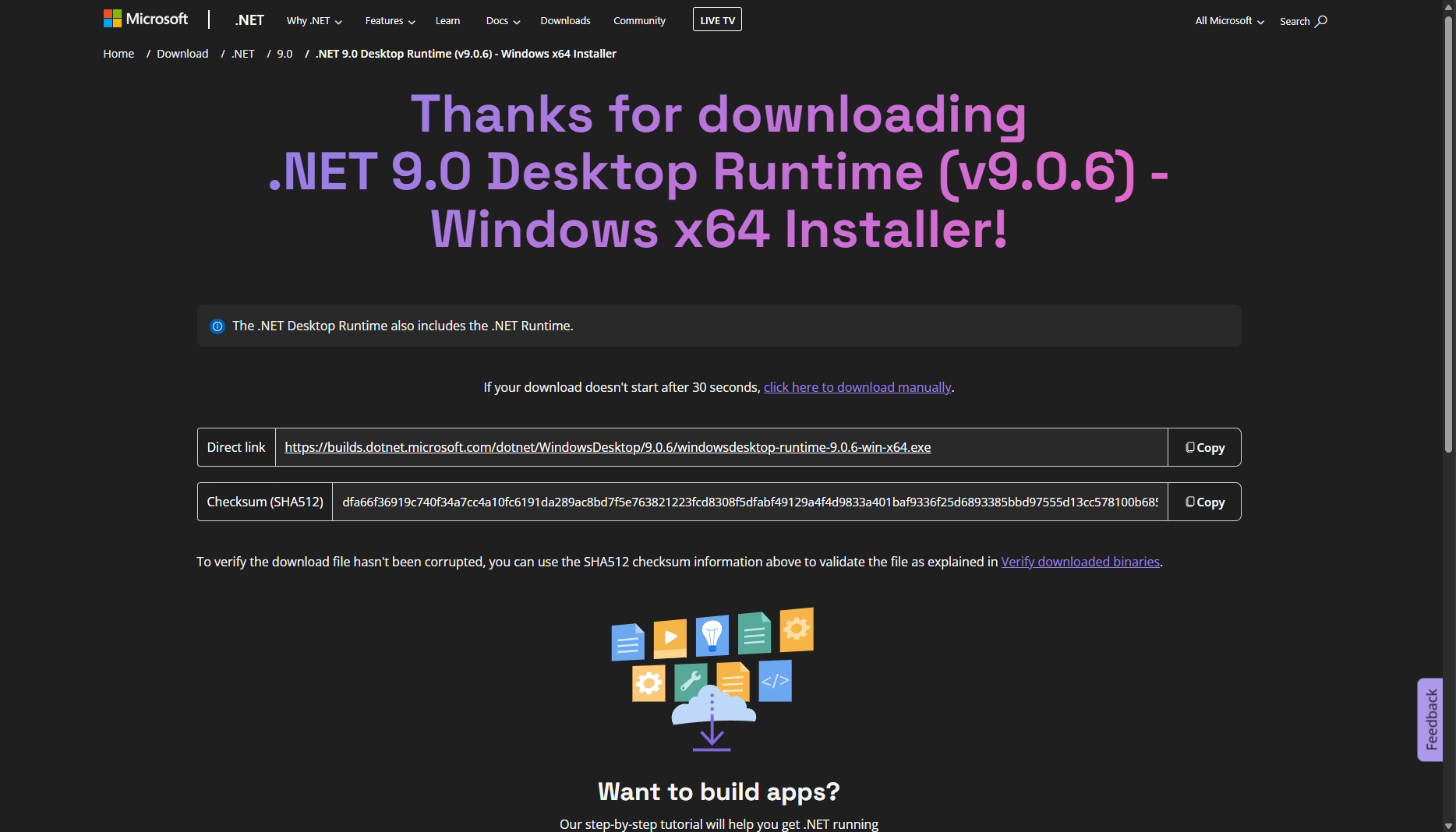
Refresher requires a package from Microsoft to function called .NET. It will prompt you to install it before you can use the patcher. When you click the button, you will be taken to Microsoft’s website and the .NET installer will automatically start downloading. If it doesn’t automatically start downloading, you may need to click to download it manually. Once it’s finished downloading, you can click to run the installer. Once it’s done installing, you can run Refresher again.
Selecting the Right Patching Option
Once you have installed .NET and have run Refresher again, you will presented with the following screen:

Click the first option, Patch LBP1/2/3 for PS3.
Get Your PS3’s Local IP Address
It’s time to turn on your PS3. If you’re using HEN, enable it. If you installed WebMAN correctly, pressing and holding the Start + Select buttons on the XMB should make this notification appear:

Note down the numbers in the ‘IP’ section. That’s your PlayStation 3’s ‘mailing address’ of sorts. Refresher needs this address to do its job. Enter this into the first box that now appears in Refresher.

Choose a Game to Patch
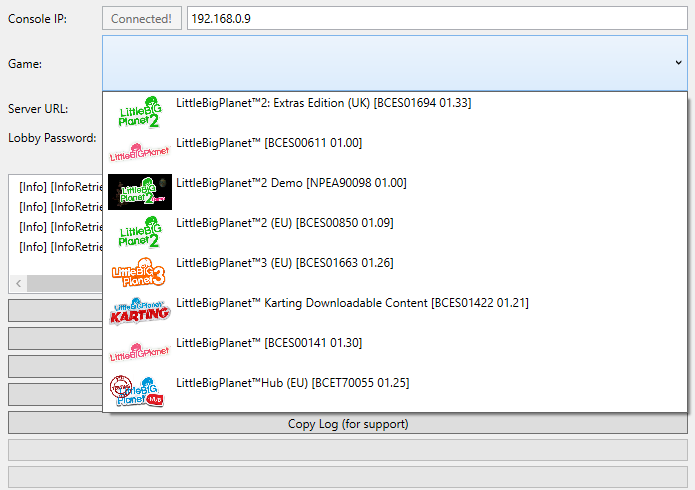
You must click Connect before you can continue on to the next step! If you have done this correctly, the ‘connect’ button above will change to say ‘Connected!’ Now, you should see a large, wide, gray box that you can click on. This has a drop-down menu with a list of all the LittleBigPlanet games that Refresher detected on your console. Choose the game you want to patch.
Server URL: Setting up for Beacon
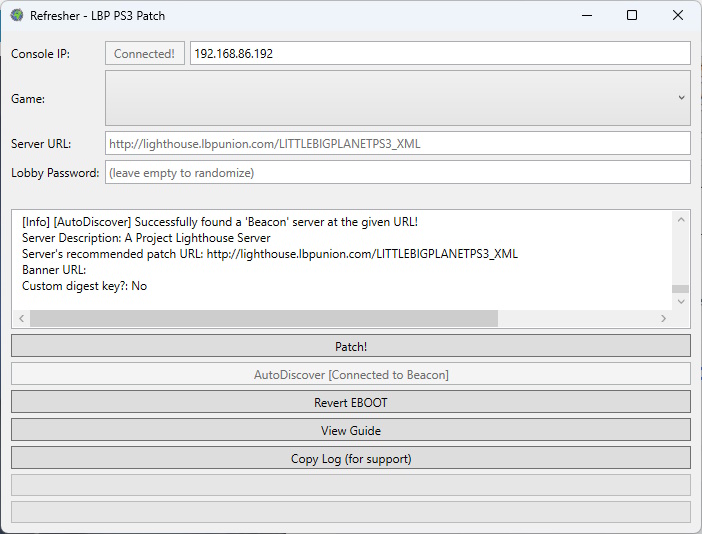
This is the part where you’ll set the server URL. Let’s use Beacon, LittleBigPlanet’s largest and most popular custom server! In this box, type the following address:
https://beacon.lbpunion.comThen, click AutoDiscover. This will connect to Beacon and grab the full URL that’s needed to patch your game. When you’ve done this successfully, it should say ‘Connected to Beacon’.
Setting a Lobby Password: Patchwork
Refresher installs the Patchwork plugin, a security implementation that helps protect you from the force join exploit. This allows you to set a lobby password, a string that all players in a session must have to play with one another. If you don’t want to play with anyone at the moment, leave this as blank. If you want to play with trusted friends, choose a lobby password that you all want to use together. You can change this later by patching with Refresher again.
Click Patch! What to Do Now
Once all these steps are complete, you can click Patch to start the patching process. This will patch your EBOOT to Beacon’s server URL and will install the Patchwork security plugin.
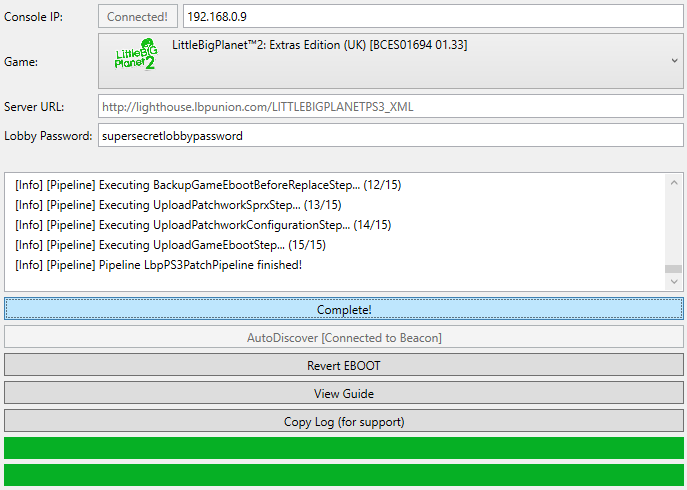
Do not click the ‘Complete!’ button, this will attempt to run the patch again. Now it’s time to test to make sure it all worked correctly. Head back over to your PlayStation 3. If you are logged into PSN or have disabled your syscalls, restart your console. If you haven’t signed in yet, start up the game you just patched and do not disable syscalls or login yet.
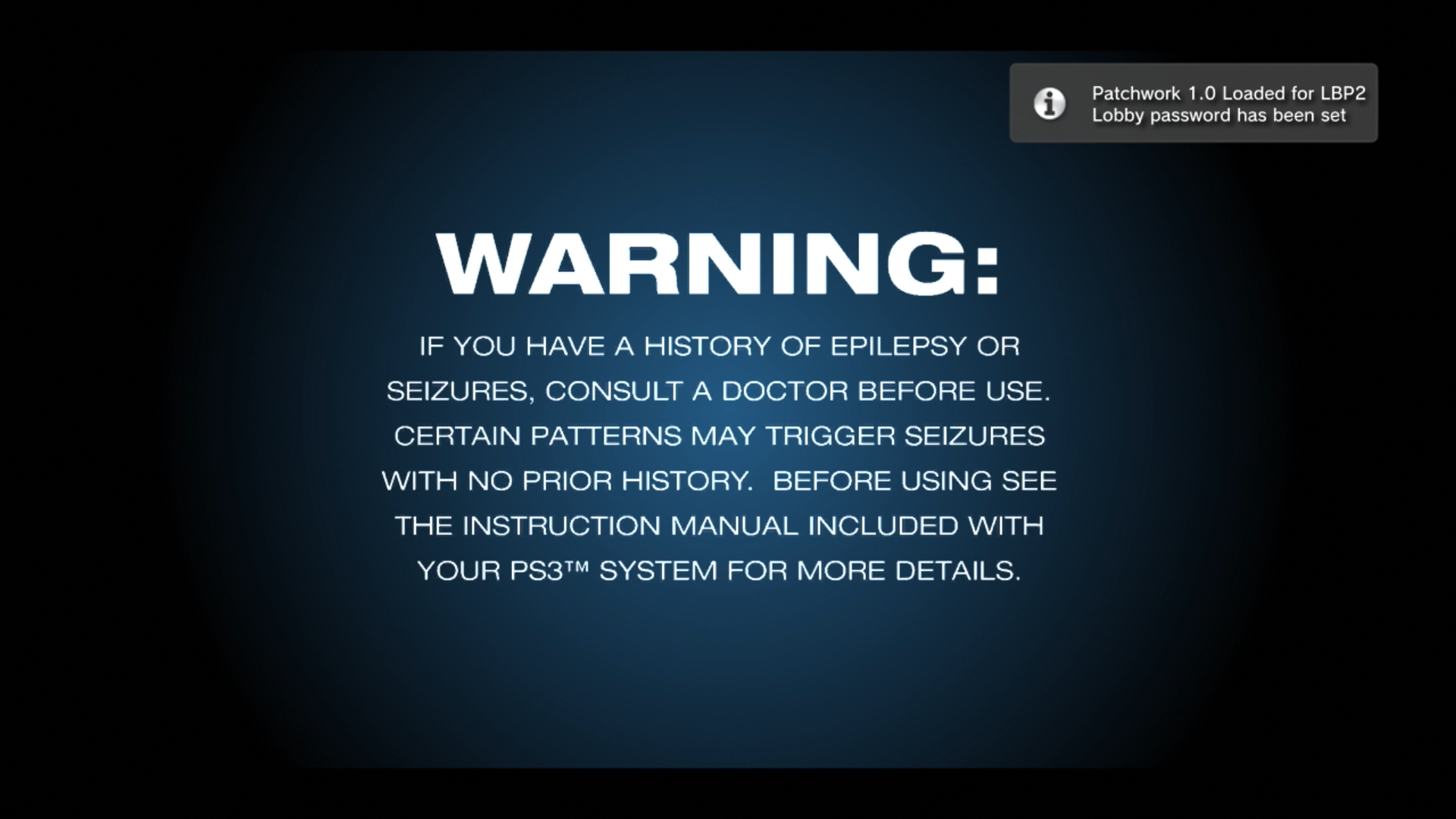
Once you start the game, you should hear a trophy sound and the a notification that appears to tell you that Patchwork set your lobby password. This is good!
Troubleshooting Patchwork
If you are having issues patching your game you may run into a few issues:
- Refresher throws a very confusing error.
- The Patchwork plugin on your PS3 gives you a notification saying your online is not safe.
Confusing Error
If Refresher throws a confusing error during the patching process, you may have skipped a step by accident. Make sure that you have typed your PS3’s IP address correctly, have clicked Connect, have chosen a game to patch, and have typed the server URL correctly. Make sure you use the AutoDiscover feature to get the latest Beacon patching URL.
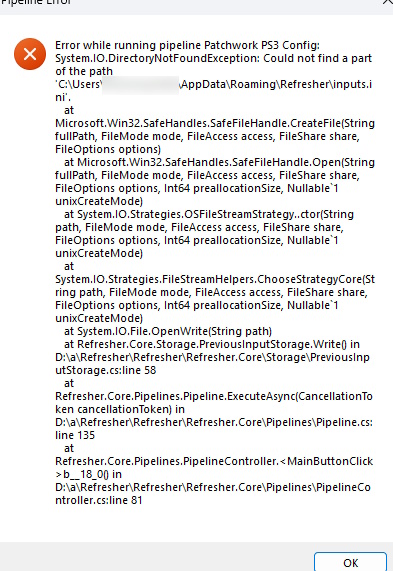
You also should ensure that WebMAN is running on your PS3. This allows Refresher to connect to the console. You can test to make sure it’s running by holding the Start and Select buttons together on the XMB to generate the system information notification.
If you are running on CFW and know that WebMAN is installed but it’s not running, try checking to make sure that Cobra is enabled in your Custom Firmware Tools on the XMB found at the top of the Network tab. If Cobra is disabled, WebMAN and other plugins (especially Patchwork!) won’t run.
Why Does Patchwork Say My Online is Not Safe?
You might see this error when booting your game:

This is a popup generated by Patchwork. If you see a warning that reads “Failed to detect game, your online is not safe” you most likely disabled your syscalls before booting the game. For some of us, it’s a common habit to sign into PlayStation Network first before we boot LittleBigPlanet. We also have the good habit of disabling syscalls with R2 and Triangle before going online. However, disabling syscalls actually prevents Patchwork from starting up.
The best way to fix this is to restart your PS3 and then go in the opposite order: boot the game first, then clear your syscalls and log into PSN!
Attribution
Refresher was developed by the following developers:
- Jvyden
- Beyley
- LoganTGT
- crystall1nedev
- turecross321
Patchwork was developed by the following:
- Zaprit
- Jvyden
3. Connecting to Beacon
Now that you have custom or hybrid firmware and a patched LittleBigPlanet EBOOT.BIN file, you’re ready to connect to a Project Lighthouse server! The LittleBigPlanet community is waiting for you on Beacon, so let’s talk about how to get started:
- Power on your PS3.
- If you have HEN, enable it.
- Start up your patched version of LittleBigPlanet.
- Press a button like Friends or Community in-game to pull up the PSN sign in screen. If Webman is working correctly and you have HEN enabled, it will force you to press R2 and Triangle at the same time to clear your syscalls. You may need to do this multiple times before you can sign in.
- If you did everything right up until this point and Beacon is online, you will be greeted by an announcements screen with further instructions. Congratulations!
4. Create Your Beacon Account
The last step, after you have patched correctly, is to create your Beacon account. Check out our registration guide to finish the last leg of your journey!
LittleBigPlanet: Back Online!
Congratulations, you’ve successfully jailbroken your PlayStation 3, patched your game, and are ready to play LittleBigPlanet online again! This process can be a little tricky sometimes, so don’t be afraid to ask for help! Seek out assistance from other community members in the comments below or join our Discord server today!
Thank you for reading! We can’t wait to see you on Beacon!
Acknowledgements
Thanks to LoganTGT for writing the original UnionRemotePatcher guide (now outdated), which this tutorial borrowed some images from.