
LBP Union and Project Lighthouse are not affiliated with Sony Interactive Entertainment or their subsidiaries. Project Lighthouse is a clean room reverse engineering project of now defunct PlayStation 3 and Vita LittleBigPlanet online features. No proprietary code is distributed. Under no circumstances will we endorse or support piracy. You must have your own copy of the game in order to use the custom features once they become available. When using these features, you release Sony Interactive Entertainment (Sony) as well as any employees or agents of Sony, from any and all liability, corporate, or personal loss caused to you or others by the use of Lighthouse custom servers for LittleBigPlanet.
Written by indo2042 and JCGoomba
After the 2021 server attacks, LittleBigPlanet’s online features on PS3 and Vita were permanently discontinued after September 13th. However, there is a way to play community levels with your friends once again thanks to the power of emulation! In this guide, we’ll show you how to patch LittleBigPlanet RPCS3 for Project Lighthouse, a custom LBP server!
Watch the Video Tutorial!
Prefer to watch instead of read? Check out our PS3 patching video tutorial on our YouTube channel!
Getting Started
Patching LittleBigPlanet 1, 2 and 3 on RPCS3 to connect to a custom server isn’t as hard as you might think! To get started, you’ll need to dump your copy of LittleBigPlanet. Dumping games is the act of taking a game from your system or gamecart and copying it into a readable format onto your SD card. There are two methods of dumping your game:
- Using MultiMAN/WebMAN on a jailbroken PlayStation3 and transferring your game to a FAT32 flash drive or transferring it via FTP (Refer to the PS3 guide to learn how to jailbreak your console).
- Using a Blu-ray drive and inserting your LittleBigPlanet disc into it.
Dumping with MultiMAN/WebMAN
There are some great tutorials online about dumping your PS3 discs using MultiMAN/WebMAN. Here’s a recommended tutorial, which thoroughly covers the dumping process using both pieces of homebrew:
For additional information on dumping content via FTP, please see the RPCS3 dumping guide.
Dumping Via Blu-ray Drive
In order to dump a disc version of the game, you will need one of the Blu-ray optical drives compatible with PS3 discs. You can find the list of supported Blu-ray drives on the official RPCS3 website.
If you have one available, then you need to insert the PS3 disc into the Blu-ray drive and then you either need a Disc Dumper (if you are on Windows) or a Python program LibRay (if you are on Linux). Both utilities are also available in the aforementioned website.
Using Disc Dumper: insert a PS3 disc, run the program, open up Settings page (top right corner), choose the destination folder where you will choose to extract decrypted PS3 disc contents onto and click OK. Then click Start to start dumping the disc.

Using LibRay: After installing LibRay, open up Terminal and type: libray -i <Blu-ray drive device> -o <destination iso file>. For example: libray -i /dev/sr0 -o ps3_game_decrypted.iso.
1. Preparing RPCS3 to Connect to Beacon
Before you patch your EBOOT, there are things in RPCS3 that need done.
Network Settings
In RPCS3, navigate to Config > Network and configure your settings like so. The DNS can be set to either 1.1.1.1 or 8.8.8.8.

Additionally, you will need to create an RPCN account. To create one, navigate to Configuration > RPCN > Account and click Create Account.
Update Your Games!
Make sure that you’ve installed all available updates for each of your LittleBigPlanet games before you proceed. You can learn how to do this via this handy guide on RPCS3’s wiki.
2. Patching Your LBP EBOOT
Beacon requires a security plugin called Patchwork in order for you to connect. Although there have been several different ways to patch in the past, we currently only recommend using a patching software called Refresher to patch your game on RPCS3.
Patching Your Game Using Refresher with RPCS3
To patch your LittleBigPlanet game to connect to custom servers using RPCS3, follow these steps:
- Download Refresher from its GitHub releases page. Select the correct version for your operating system.
- When you run it for the first time, it’ll tell you to install .NET. Follow the instructions on screen.
- Run Refresher again once the .NET installation is complete. From the list of options, select Patch LBP1/2/3 for RPCS3.
- Ensure that each game you want to patch is updated to the latest version in RPCS3.
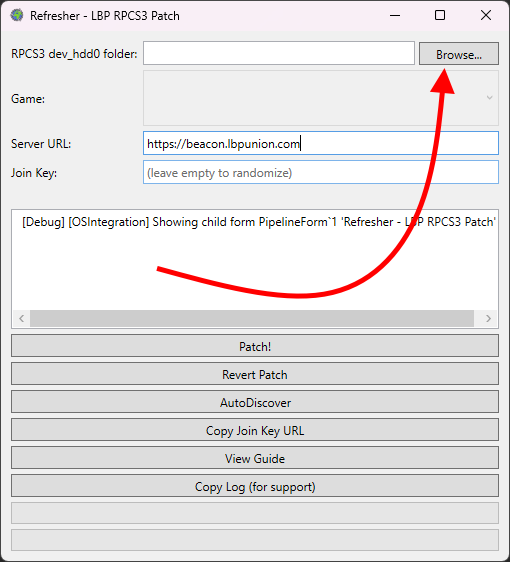
- At the top of the screen of Refresher, click ‘Browse’.
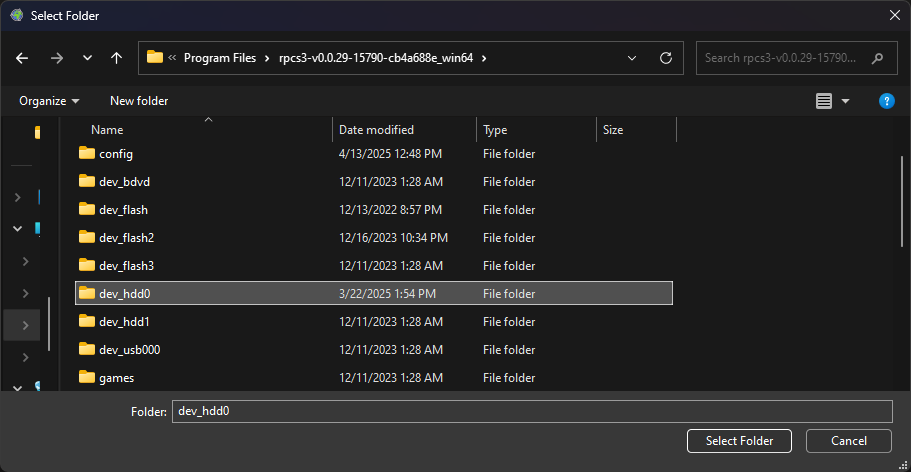
- Navigate to RPCS3’s dev_hdd0 directory. This may be in a different location on each machine. On Windows, you’ll find your main RPCS3 directory in ‘Program Files’. dev_hdd0 should be located inside the main RPCS3 directory.
- Once you’ve selected dev_hdd0, click Select Folder.
- In the section where it says ‘Game’, click the wide gray box to open a drop down where you can select the game you want to patch.
- In the Server URL section, type “https://beacon.lbpunion.com”.
- Toward the bottom, click AutoDiscover to fill in the full Beacon URL.
- Type a secure Join Key if you want to play with trusted friends. If you don’t set one, your join key will be randomized.
- Click Patch and watch the magic happen!
That’s a lot of steps! Let’s break it down step by step in the next few sections.
Download and Install Refresher
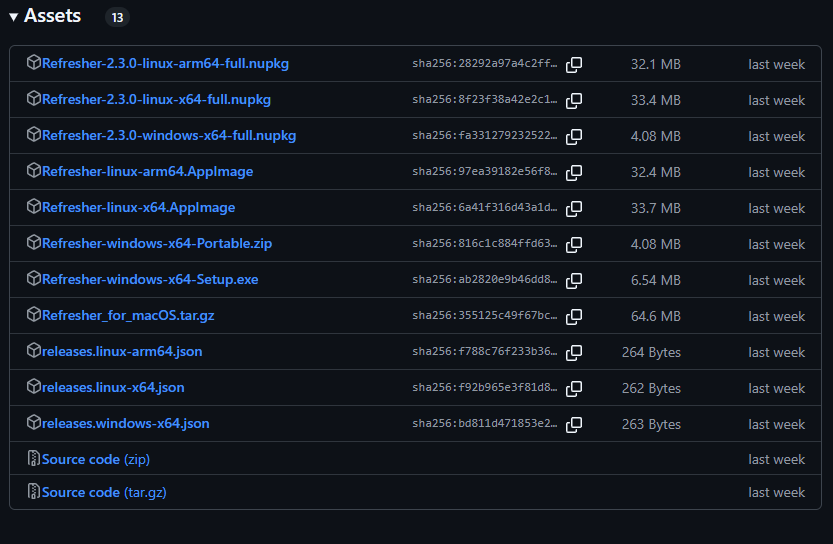
Make sure that you select the latest version of Refresher from the GitHub Releases page. Older version of Refresher don’t support RPCS3. Select the version that matches your operating system. For most Windows users, you should select the Setup version instead of the Portable version.
After you install, you might be asked to install .NET. This is a Microsoft package that’s required for Refresh to run properly. Follow the instructions on screen to install it.
Click Patch LBP1/2/3 for RPCS3
When Refresh is ready to use, you’ll open it and see this page:

Make sure not to click Reconfigure Patch for RPCS3 by mistake. That button is handy after you’ve already patched with Refresher.
Have You Updated Your Games?
Make sure your games are up to date before you continue! See RPCS3’s official documentation to learn how to get your game’s up to date.
Connect Your dev_hdd0 Directory
When you use Refresher on a PlayStation 3, it connects to the console via the local Internet connection. It then finds the game files you have stored locally in what’s called the file system. RPCS3 emulates the real PlayStation 3 hardware, so the file system is almost identical.
It’s easy for Refresher to automatically find what it needs with a real PS3, but it’s a little trickier with RPCS3 because the location of the file system can vary widely. So, you’ll need to give Refresher a guiding hand.
Start by clicking Browse at the top of the Refresher menu that you have open now.
Your operating system will determine what you see next, but it should be relatively similar across Windows, MacOS and Linux. On Windows, your file explorer will open. Now you’ll need to navigate to the hdd_0 directory in RPCS3 and select it. So, where is it?
On Windows, RPCS3 will install to Program Files. The hdd_0 directory will be found in there.
Another easy way to find your exact file system directory for RPCS3 is to use a trick inside the RPCS3 application. If you right click on one of your games in the list, you can click Open Folder → Open Disc Game Folder. Your file explorer will open the game’s folder inside the RPCS3 file system. You can then navigate upwards through directories until you find the root hdd_0 folder.
Select a Game to Patch
Next, select a game to patch by clicking the gray box next to the word Game at the top. It’s pretty wide and you might miss it at first glance.
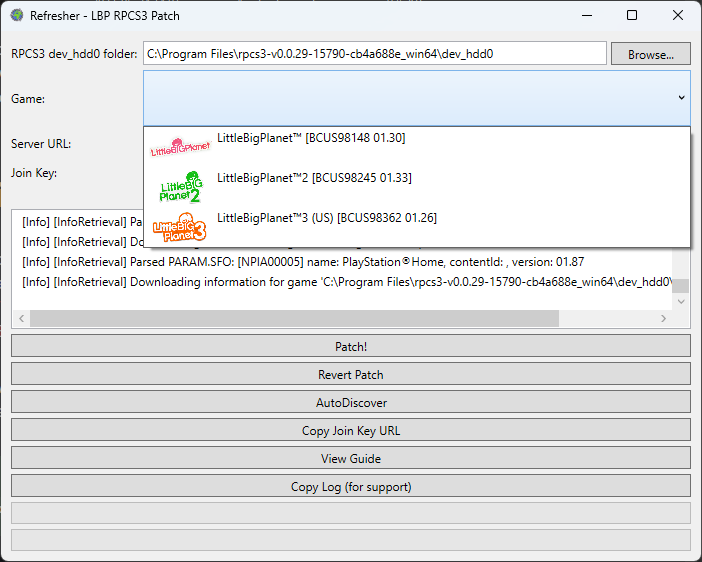
When you click the box, a drop down will appear to allow you to select a game. This will show you only the LittleBigPlanet games that you have installed.
Server URL and Join Key
Use the following address in the server URL box:
https://beacon.lbpunion.comThen, click AutoDiscover to fill in the full Beacon game server URL. It should say ‘Connected to Beacon’ if you’ve done it correctly.

In the join key box, type a passphrase or password or leave it blank. If you type a key, give this key to trusted friends. If they patch their game with the same join key, they’ll be able to join you. No one will be able to join your game in multiplayer without a matching join key. This helps mitigate the risk of the force join exploit.
Once your window looks like it does above and you’re happy with your choice in join key (you can always change it later), you’re ready to click Patch!
You may see a window appear asking if you should open the server’s website to play. You don’t have to worry about this. See our main Beacon landing page to see whether or not you’re able to sign up with RPCS3 at the moment.
Create Your Account
To connect to Beacon, the last step is to create your account. Once you are properly patched, check out our registration tutorial to learn how to get connected!
LittleBigPlanet: Back Online!
Congratulations, you’ve successfully patched your game and are ready to play LittleBigPlanet online again! This process can be a little tricky sometimes, so don’t be afraid to ask for help! Seek out assistance from other community members in the comments below or join our Discord server today!
Thank you for reading, and we can’t wait to see you on Beacon!